How to Resize a Signature for the SSC Online Form: If you are filling out an SSC online application form and getting errors like “signature file size too large” or “invalid image format,” you are not alone. Every year, thousands of aspirants face issues uploading their signatures because they don’t know the exact SSC signature size requirements or how to resize their signatures for the SSC online form properly.
In this guide, we will walk you through everything — from SSC signature specifications to using a free online SSC signature resizer tool — so you can complete your application without any hassle.
Why Does SSC Signature Size Matter?
The Staff Selection Commission (SSC) has strict technical specifications for signature uploads. If your image does not meet these requirements, the form will either reject the upload outright or flag your application for rejection during document verification.
The SSC exam portal—whether it is SSC CGL, SSC CHSL, SSC MTS, SSC GD, or SSC CPO—generally requires the following:
- File format: JPEG or JPG
- File size: Between 10 KB and 20 KB
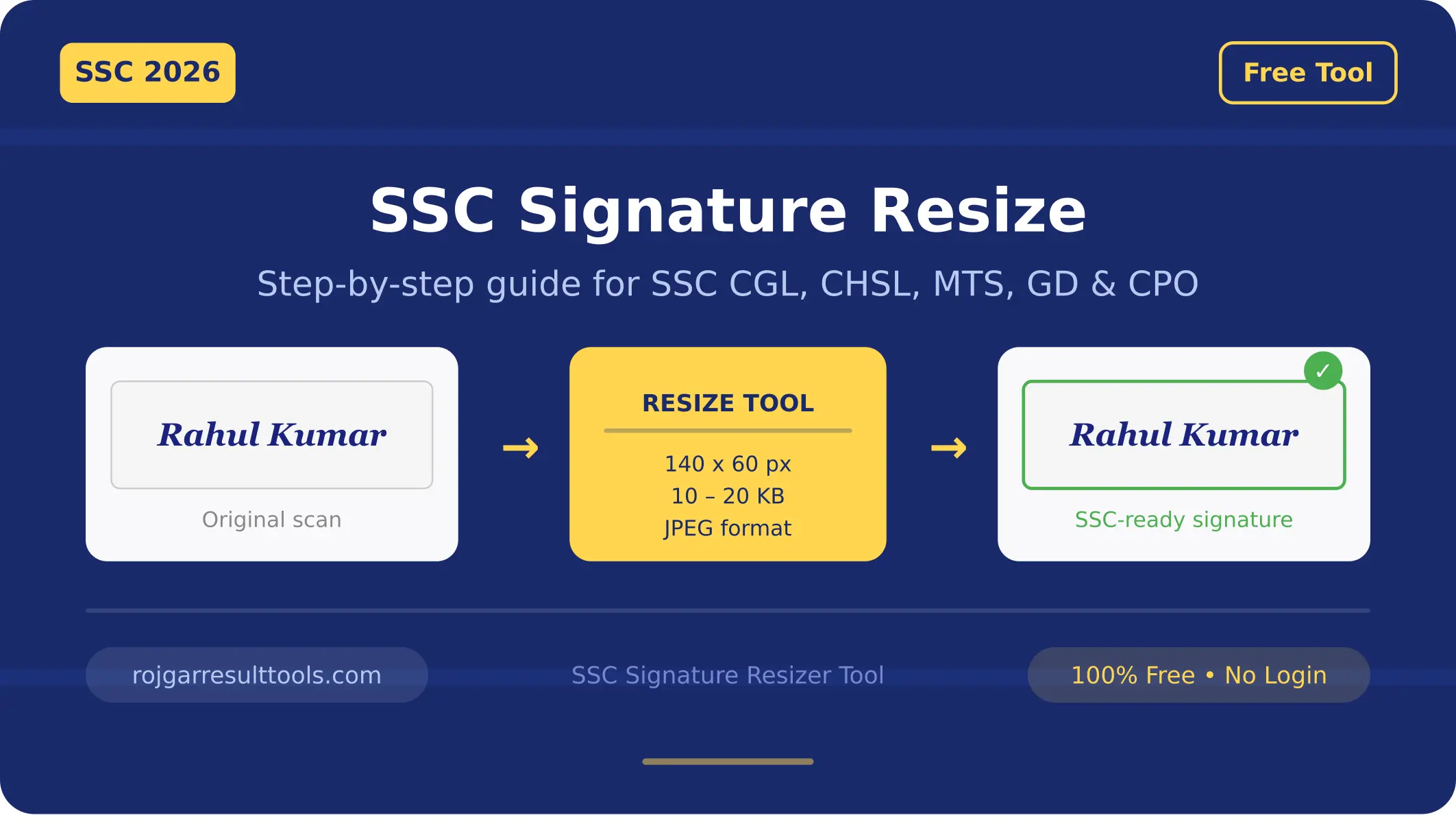
- Dimensions: Approximately 140 × 60 pixels
- Background: White
- Ink color: Black or blue
- No stamps, no initials—only full signature
Failing to meet even one of these parameters can result in your application being rejected or held for manual review. That is why resizing your signature correctly before uploading is essential.
How to Resize Signature for SSC Online Form (Step-by-Step)
Step 1 — Create a proper signature
On plain white paper, sign your full signature using a black or blue pen. Make sure the signature is clear, legible, and not too small or too large on the page. Avoid using initials—SSC specifically requires a full signature.
Step 2 — Scan or photograph the signature
Using a scanner (preferred) or a mobile scanning app, capture your signature. Save the image as a JPEG or PNG. Make sure the background is white, and the signature is not blurry, tilted, or cut off.
Step 3 — Use the SSC Signature Resizer Tool
Instead of manually resizing through complex photo editors, use the purpose-built online tool:
👉 https://rojgarresulttools.com/ssc-signature-resizer/
This free SSC signature resize tool is specifically designed to help candidates resize their signature image to meet SSC’s exact specifications in just a few clicks—no technical knowledge required.
Step 4 — Upload and resize
Visit the tool, upload your scanned signature image, and the tool will automatically resize it to the correct dimensions (140 × 60 px) and compress the file size to fall within the 10–20 KB range. You can also manually set custom dimensions if needed for other government exam portals.
Step 5 — Preview and verify
Before downloading, preview the resized signature to confirm:
- The signature is fully visible and not cropped
- The background is white
- The file size is within 10–20. KB
Step 6 — Download and upload the SSC form
Download the resized signature and upload it directly to your SSC application form. The portal should now accept it without errors.
Common Mistakes to Avoid While Uploading SSC Signature
Many candidates make simple but costly mistakes. Here are the most common ones and how to avoid them:
File too large: Most phone cameras capture images in megabytes. Always compress before uploading. The SSC signature resizer tool handles this automatically.
Wrong file format: SSC typically requires JPEG/JPG. Avoid PNG or WEBP unless the specific form allows it.
Blurry or distorted signature: Resizing a very small image to larger dimensions increases pixelation. Always start with a reasonably high-quality scan.
Incorrect dimensions: Uploading a square image or a full-page scan will not work. The aspect ratio should be roughly landscape (wider than tall).
Transparent background: Make sure the background is white, not transparent. Tools like the SSC signature resizer tool handle this automatically.
Best Free Tool for SSC Signature Resizing
While there are many generic image resizers online, most are not calibrated for government form requirements. The SSC Signature Resizer is built specifically for SSC and other government recruitment exams like UPSC, RRB, IBPS, and SBI.
Key features of this tool:
- Automatic resize to SSC-compliant dimensions
- File size compression within 10–20 KB
- Supports JPEG and PNG input
- Free to use, no login required
- Works on mobile and desktop
SSC Signature Size for Different Exams
| Exam | Format | File Size | Dimensions |
|---|---|---|---|
| SSC CGL | JPEG | 10–20 KB | 140 × 60 px |
| SSC CHSL | JPEG | 10–20 KB | 140 × 60 px |
| SSC MTS | JPEG | 10–20 KB | 140 × 60 px |
| SSC GD | JPEG | 10–20 KB | 140 × 60 px |
| SSC CPO | JPEG | 10–20 KB | 140 × 60 px |
Always double-check the official SSC notification for the specific exam you are applying to, as requirements may be updated.
Frequently Asked Questions
Q1. What is the correct SSC signature size for the online application form?
The standard SSC signature size is between 10 KB and 20 KB, in JPEG format, with dimensions of approximately 140 × 60 pixels. The signature must be on a white background using black or blue ink.
Q2. Can I resize my signature on my mobile phone?
Yes, you can. The SSC Signature Resizer Tool is fully mobile-compatible. Simply open it in your phone’s browser, upload your signature image, resize it, and download—no app installation needed.
Q3. What happens if I upload the wrong signature size on the SSC form?
If the file size is outside the 10–20 KB range or the format is incorrect, the SSC portal will display an error and reject the upload. In some cases, a non-compliant image may get through, but could cause issues during document verification or the admit card process.
Q4. Is it safe to use an online SSC signature resizer tool?
Yes, reputable tools like rojgarresulttools.com/ssc-signature-resizer/ do not store your uploaded images. Your signature image is processed locally or deleted immediately after download, keeping your personal data secure.
Q5. My signature is coming out blurry after resizing. What should I do?
Blurriness usually happens when the original scan is of poor quality or too small. To fix this, rescan your signature at a higher DPI (300 DPI or more), then upload the higher-quality original to the resizer tool. The output will be much cleaner.
Q6. Can I use the same tool for SSC photo resizing as well?
Many candidates also need to resize their passport-size photograph for the SSC form. While this guide focuses on signatures, the same tool at Rojgar Result Tools supports photo resizing as well—check their site for the photo resizer option.
 Join WhatsApp Channel